

Administering
Themes and branding
Make the application look like yours: your colours and fonts for the interface and the diagrams, and your own product name, logo and favicon. Both apply at once, with no restart.
Organisation themes
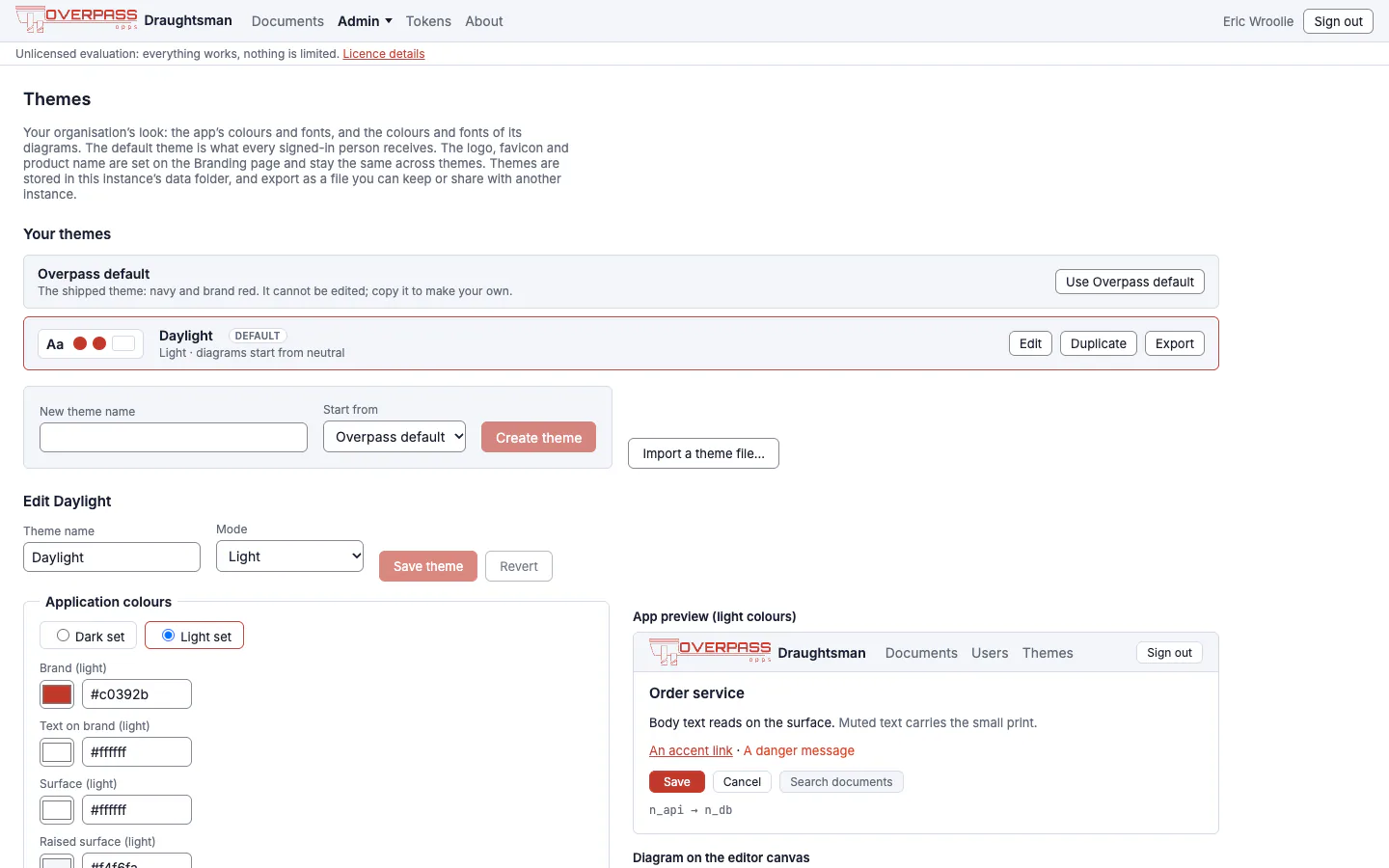
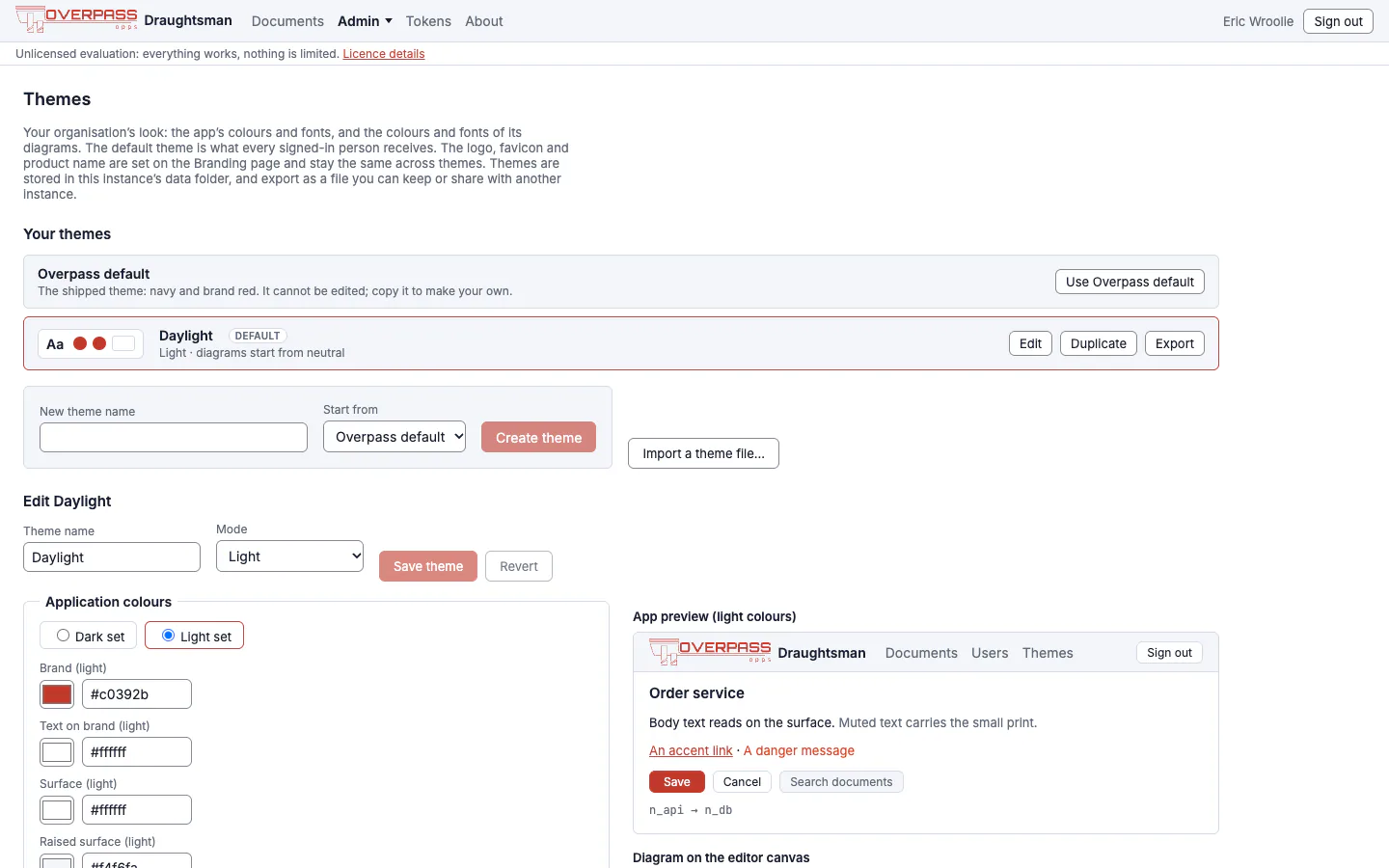
Admin, Themes holds your organisation's colours and fonts: the application's own (the chrome) and the diagrams'. The shipped Overpass default (navy and brand red, dark) cannot be edited. Create a theme from it, or from another theme, edit it, and make one the default. The default is what every signed-in person receives, and the sign-in page wears it too.

A theme has a mode: Dark, Light, or Follow the system. It has a dark set and a light set of application colours (brand, text on brand, surface, raised surface, border, text, muted text, accent, danger), a corner radius, an interface font and a monospace font, and a diagram half: a starting diagram theme (overpass, neutral or mono) plus a palette you can edit role by role. Changing a palette colour changes it everywhere that theme's shapes and connectors use it.
- Checks, not blocks. The page lists WCAG contrast ratios for the pairs that matter (text on surface, muted text, text on brand, accent and danger) and warns about low contrast, but never blocks a save.
- Safe input only. Colours are hexadecimal values and fonts are plain family names. Anything else is rejected, not escaped. Fonts are named, not uploaded: a family shows only where it is installed or the app already loads it.
- Import and export. A theme exports as a YAML file you can keep or move to another instance; the same format is what
theme.chromeindraughtsman.yamlcan name. - Where it lives. One YAML file per theme under
<data>/themes/org/, plus a small file naming the default, so a backup carries it. - People can still pick a different diagram theme for their own view from the editor's Theme menu. That is view state; it does not change the document. The server's render (server-side PDF and the thumbnails on the Documents page) uses the organisation default, whereas the editor's browser export and print use the theme you picked.
A draft theme from a website's colours
Under the theme list, From a website turns a site's colours into a draft theme. Paste the site's CSS (or the whole page's HTML) and press Read colours from this CSS. You get the draft in the usual theme editor, unsaved, with the application and diagram previews and the contrast table, a list of how each colour was chosen, and a list of every colour that was adjusted for contrast. Nothing is created until you press Create theme from draft, and nothing from the site is stored.

- Both light and dark are filled. The scheme the site has is used as written; the other is derived, and the list says so (here: Dark colours derived from the light ones: the site gave only a light scheme). A dark scheme under
prefers-color-scheme: dark,.darkor[data-theme=dark]is found, not derived. - Only hex colours are carried. Fonts and the corner radius stay at the Overpass defaults (fonts are never copied from a site), and the diagram half starts from a built-in diagram theme whose blues become shades of the site's brand colour. It is deterministic: the same input always gives the same draft.
- Adjusted, not blocked. The extractor moves a colour that would fail the same WCAG checks the Themes page shows, and tells you the from and to values. You can still edit any of them before creating the theme.
- Admin only. The route needs an administrator's browser session; an API token, even an administrator's, is refused.
The web address box: off by default
The section has a Web address box only if the operator turned it on. By default the page says Reading a page by its address is switched off on this server. Pasting the CSS works the same way. That is deliberate: turning it on lets an administrator make this server fetch a web page, and a self-hosted install otherwise sends nothing anywhere. To turn it on, in draughtsman.yaml:
themes:
  fetchFromUrl:
    enabled: true            # off by default
    allowedHosts: []         # exact host names that may be reached even at an internal address

- What a fetch does. It fetches that page and up to 8 stylesheets it names: https only, 2 MiB and 15 seconds in all, no cookies or credentials, and redirects only within the same host. It never connects to a loopback, private, link-local or cloud-metadata address, however the address is spelled.
- An internal site. To read the colours of a site on your own network, list its exact host name in
themes.fetchFromUrl.allowedHosts(no wildcards, no ports). That lifts the address rule for that host only. - It is logged. Each fetch, refused or not, is a security-log row, Page fetched for a theme, naming who asked, the host and what happened, never the page or its path.
- Pasting is the air-gapped way. Pasting CSS makes no network call, whatever this setting says.
- Errors are fixed text that never echoes an address or any of the page: disabled, invalid address, scheme refused, blocked address, redirect refused, too large, not CSS, unreachable, timed out.
draughtsman config check says whether the fetch is on and which hosts are listed; we ran it on a data folder with the setting on (line breaks added here):
Themes
  INFO   themes.fetchFromUrl.enabled is true: an administrator can make this server fetch a web page and up to 8 of its
         stylesheets (https only, 2 MiB and 15 seconds in all, no credentials or cookies) from Admin, Themes, From a website.
         Each fetch is recorded in the security log (host and outcome). Nothing fetched is stored. Hosts reachable even at an
         internal address: design.internal.example.
We ran the paste route and showed the address box. We did not fetch a real public website over https: Overpass's tests use a local site and a fake name resolver, so no test makes a request off the machine, and neither did we. Treat the fetch rules above as read from the product's documentation and tests, not as something we watched happen.
Product name, logo and favicon
Admin, Branding sets the product name, a logo, an optional light-on-dark logo and a favicon. They are shown on the sign-in page and the application shell. Removing an upload returns that part to the theme's own value, and Reset all branding returns everything.

| Slot | Accepts | Used on |
|---|---|---|
| Logo | PNG or SVG, up to 512 KiB, 4096 px | Light surfaces |
| Light-on-dark logo | PNG or SVG, same limits; optional | Dark surfaces; falls back to Logo |
| Favicon | PNG, SVG or ICO, up to 256 by 256 | The browser tab |
- An uploaded SVG is checked against a strict allow-list: no script, event handlers, external references,
foreignObject, or CSS that calls out. It is served as an image under a restrictive policy. A DOCTYPE is refused too. We found this out by uploading the Overpass logo as exported from a design tool: The SVG could not be parsed: For security reasons DTD is prohibited in this XML document. Delete the<!DOCTYPE …>and XML declaration lines and it uploads. - An oversized or malformed image is refused with a plain sentence, for example That file is too large: a branding image can be at most 512 KiB.
- Branding changes are logged (
Draughtsman.Server.Branding) but not written to the security log.
Two things to know about light themes
The shipped logo is a white wordmark. If you make a light theme as the default and upload no light-surface logo, the header draws white on white. The Themes page warns about it; it does not fix it. In the Branding page the plain Logo slot is the one used on light surfaces.
For choosing a logo, a theme whose mode is Follow the system is treated as dark, so with the operating system in light mode the application still draws the light-on-dark logo. We hit this while making the light screenshots on this site. Until it is changed, give a "Follow the system" theme a logo that is legible on both, or use mode Light or Dark. The colours themselves follow the system correctly.
This documentation site carries no logo of its own: its header is the plain name "Draughtsman" with a small "by Overpass" line.
Older mechanism
theme.chrome in draughtsman.yaml names a chrome theme file (looked up in the data folder's themes/, then the data folder, then the shipped themes). It is the fallback when no organisation theme is the default. theme.diagram is accepted but not read by this version. Prefer the Themes page.