

Using Draughtsman
The editor
A browser editor for node-and-edge diagrams. Everything it does is also reachable from the keyboard, and every command appears in one searchable list.

Finding your way round
- The title and the save state sit at the top left. The title is editable in place. The state reads Saved, Saving or Unsaved changes.
- The file menu is the three-bar button. It holds Save, new diagrams, imports, exports, every edit command, and Help. Each command in it shows its shortcut.
- The tool rail has Select, Add (the current shape), Shapes (the palette) and Connector.
- The panel on the right has six tabs: Properties (arrange, style, connector settings), Text (the DSL and Mermaid), AI, Tour (fly-through), History (versions) and Review (a structural check).
- The theme menu at the top right picks how this diagram is drawn on your screen. It is a view setting: it never changes the document.
Shapes and libraries
Press S to open the shape panel. Click a shape to place it in the middle of the view, or drag it to where you want it. The search box at the top filters every group at once. What you see depends on the diagram's type:
| Diagram type | Palette groups |
|---|---|
| Flowchart | Flowchart kinds (process, decision, terminator, data, note, container, document, predefined process, manual input, off-page connector), More flowchart shapes (a further 15 ISO 5807 symbols, closed by default), State, Swimlane, BPMN, and plain Shapes. |
| Architecture | Architecture kinds (service, database, queue, client, external system, container, note), Icons, Org chart, UML class, ER entity, and plain Shapes. |
| Freeform | Every shape family, with no kind vocabulary. |
| Sequence | Participants and actors; messages are drawn with the connector. See Sequence. |

- Technology icons. 41 unbranded line-art icons (servers, network topology, load balancer, API gateway, cache, CDN, firewall, VPC and subnet boundaries and more) in the architecture palette's Icons group. They are generic on purpose. There are no AWS, Azure or Google Cloud icon packs.
- Images. The Image shape takes an uploaded picture, stored once per unique file on your server (up to 10 MiB each).
- Notes. The Note shape is a plain annotation. There is no threaded commenting; see the FAQ.
Connectors
Three ways to connect shapes, all producing the same thing.
- Drag from a handle. Hover a shape in the Select tool and small handles appear at its connection points. Drag from one onto another shape.
- The Connector tool (C): drag from one shape to another.
- Connect the selection (L): select two or more shapes and press L to join them in the order you selected them, as one undo step. No pointer needed.
Dropping on the body of a shape attaches to the side that faces the other end. Only a drop inside a connection point's ring pins that exact point. A selected connector has handles to re-attach either end, and, for orthogonal and curved connectors, handles on each draggable middle segment or waypoint. Reset to default clears a hand-dragged route.
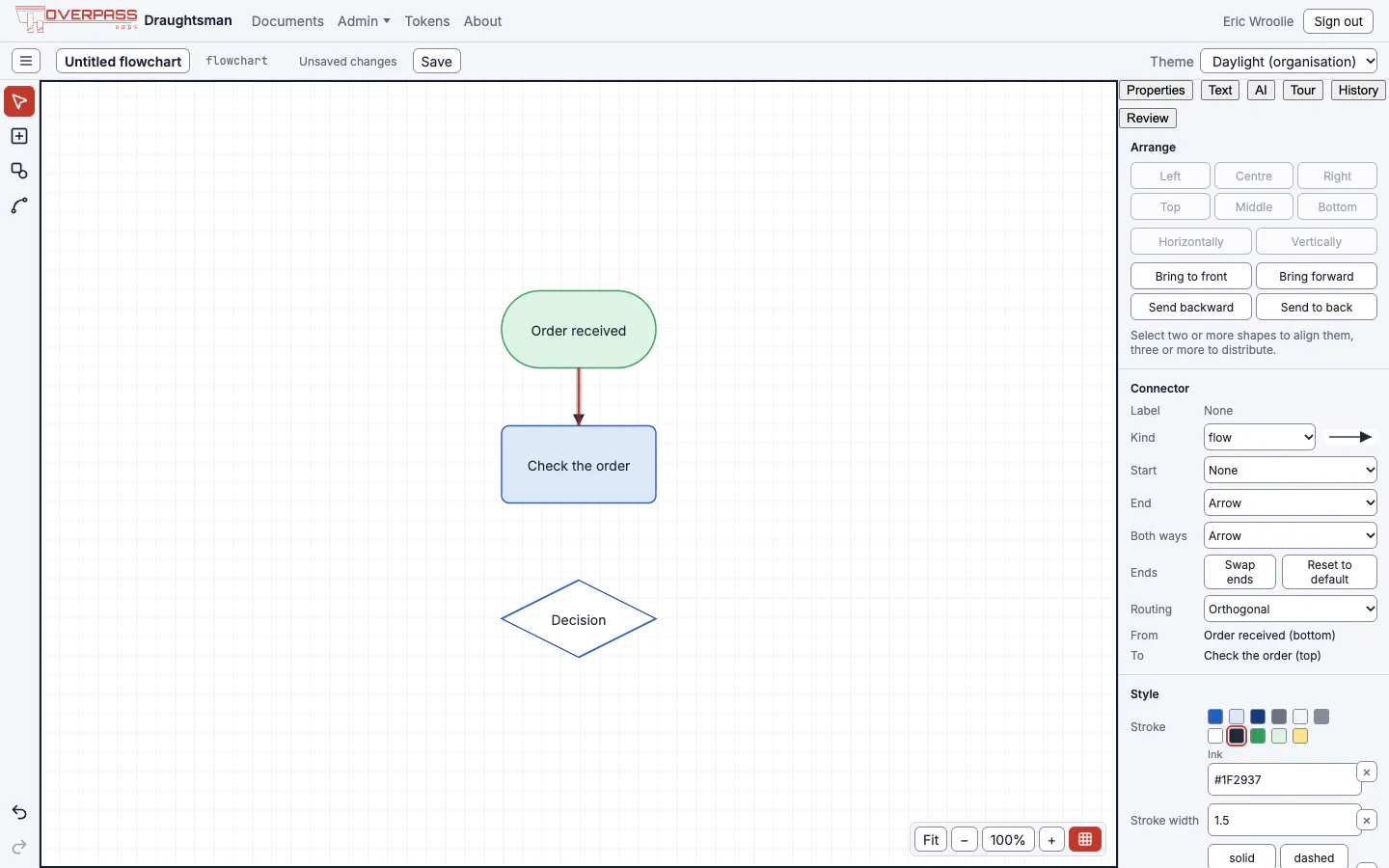
- Routing: straight, orthogonal (right-angled, routed around other shapes) or curved. Orthogonal routes are computed as you draw, never stored, so the export draws the same path the editor does.
- Ends: arrow, open, diamond, circle, the six crow's-foot notations, and the UML inheritance, aggregation and composition heads.
- Labels sit on an opaque plate and are nudged along their connector so two labels, or a label and a neighbouring shape, do not overlap.
- Several connectors leaving the same connection point fan out instead of drawing on top of each other.
Labels and text
Double-click a shape, or select a shape or connector and press Enter, to edit its label in place. Enter or a click elsewhere commits; Escape discards. A shape's label wraps the same way in the editor and in an export.
Styling
With something selected, the Properties tab shows a Style section: Fill, Stroke, Stroke width, Dash (solid, dashed, dotted), Font, Font size and Bold. Swatches come from the diagram theme and name their colour and hex value; you can also type any hex. Text on a filled shape turns dark or white by itself when your fill would make it unreadable, unless you set a text colour. A style you set is stored sparsely on that element, so the theme still decides everything you did not touch.

Moving, aligning and arranging
- Select: click, or drag a marquee on empty canvas. Tab and Shift+Tab step through nodes.
- Move, resize, rotate: drag the shape or its handles. Smart guides and snapping help you line things up (turn the grid on or off with Cmd+'). The arrow keys nudge by 1 px, with Shift by 10 px. Escape during a drag cancels it.
- Align (left, centre, right, top, middle, bottom) needs two or more shapes; Distribute (horizontally, vertically) needs three.
- Order: bring to front, bring forward, send backward, send to back.
- Group and containers: Group wraps the selection in a container; Ungroup releases it; Fit to contents resizes a container round what it holds. Drag a shape into or out of a container to change its parent. A container grows one level to take in what you drop on it.
- Tidy layout: three automatic layouts (layered, stress, tree) from the file menu. Each is one undo step, and the layout runs only when you ask, never on each edit. The same layout runs once when you import Mermaid, SQL or text, and when an AI reply mostly replaces the diagram. Its connectors are left to the editor's own router rather than pinned to the layout engine's bend points, so they leave a diamond or a rounded end from its outline instead of from the middle of an invisible box. A few new connected shapes the AI adds to a larger diagram are placed as a block beside it, and the shapes you already placed do not move.
Undo, redo and saving
- Cmd+Z and Cmd+Shift+Z undo and redo every edit exactly. A drag is one step, not one per frame. An edit made by an agent or another person is never undone by your undo.
- Autosave stores the document two seconds after your last change, retries with back-off if the server cannot be reached, and tells you what it is doing. Your edits are kept in the browser meanwhile.
- If someone else changed the same thing while you were editing, you are asked whether to reload theirs, keep yours, or save yours as a new document. A change to something you did not touch is merged in without asking.
- Leaving the editor with unsaved edits, by any route including the back button, asks you first.
Copy, cut and paste
Standard Cmd+C, X and V, plus Cmd+D to duplicate. Clipboard commands use the browser's own clipboard events, so they work without a permission prompt.
Zoom, pan and large diagrams
- Zoom: Ctrl+scroll or pinch, Cmd+=, Cmd+-, Cmd+0 (fit to screen), Cmd+1 (100%), or the Fit button.
- Pan: hold Space and drag, use the middle mouse button, scroll the wheel or trackpad, or use one finger on a touch screen. A plain drag on empty canvas draws a selection marquee instead.
- Pen and touch work for connecting and dragging.
The canvas only draws what is on screen. Below 25% zoom it switches to a simplified drawing of plain boxes and lines, and labels that would be under 6 pixels tall are not drawn. We loaded the repository's benchmark document, 2,000 nodes and 2,500 connectors, into the editor in headed Chrome on an Apple-silicon Mac: the first shapes were on screen about 0.3 seconds after navigating, and the fit view looked like this.
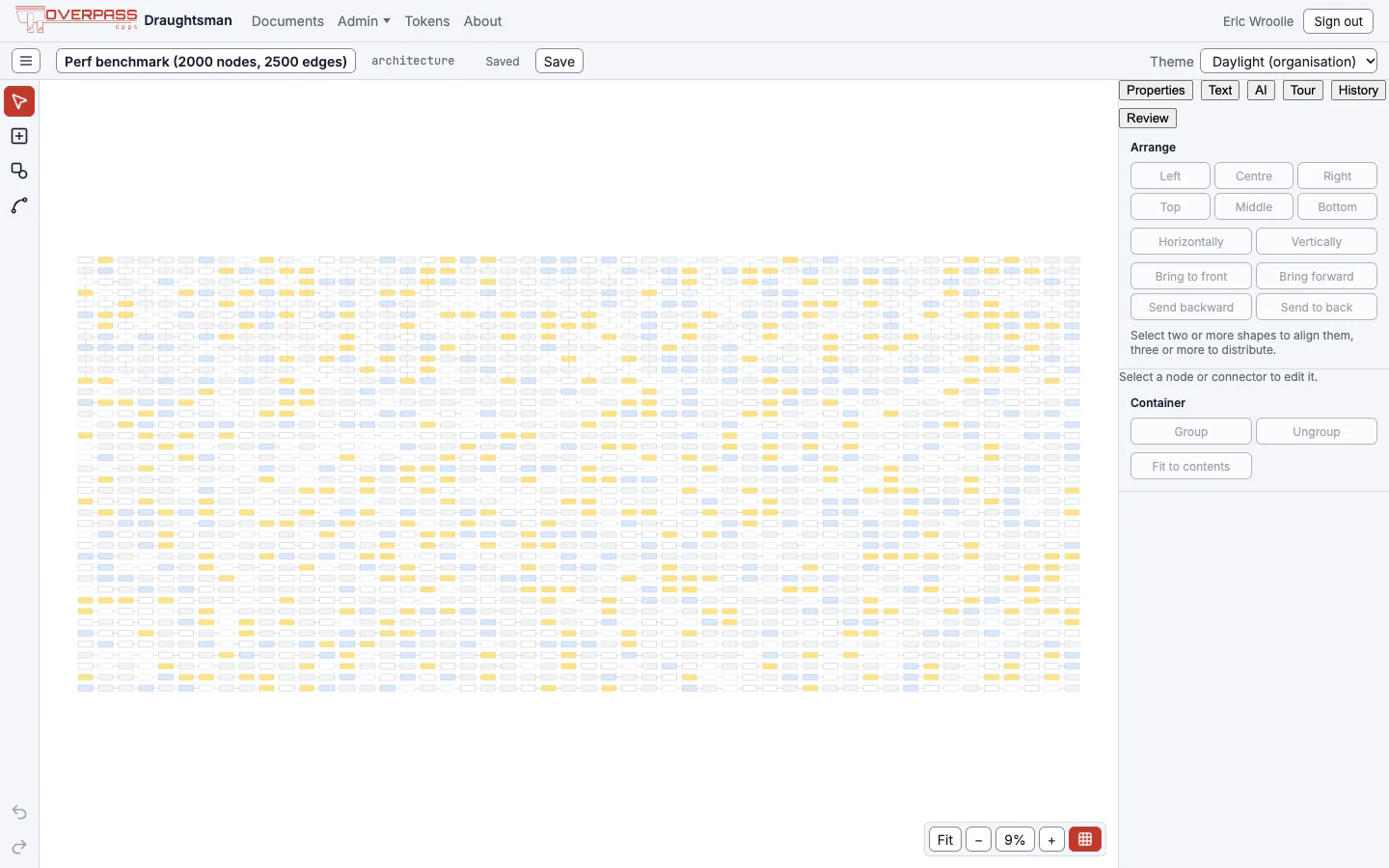
That is one machine and one benchmark, not a guarantee.
Narrow windows
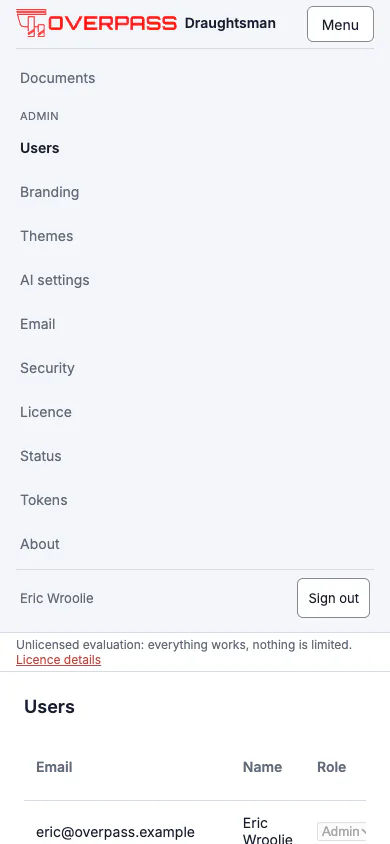
The application adapts down to a phone-width window (we looked at 390 px). Under 930 px the top bar's links fold into one Menu button, and the editor's right-hand panel becomes a sheet. Each link is in the page once, so a screen reader hears it once. Drawing on a phone was not tested.
The command palette
Cmd+K opens a palette that searches every action, with its shortcut beside it. The file menu and the palette read from the same list, so a command cannot exist in one and not the other.

The Text pane
The Text pane shows the diagram you are looking at as text, beside the canvas, and lets you change the diagram by editing that text. Open it with the </> button in the top bar, or View, Toggle Text (DSL) in the menu, or the Text tab of the right-hand panel. The editor remembers, in this browser, whether you left it open and which text it was showing.

The DSL is the diagram's own text form: one line for each node, container and edge, with the positions and styles you drew. A node you add to the text without a position (@ x,y) is drawn with a dashed outline in a provisional place until you move it or use Arrange, Tidy layout.
Editing and applying
Edit the text, then press Apply (or Ctrl+Enter with the cursor in the text). Nothing changes on the canvas until you do, so half-typed text never reaches the diagram.
- Apply changes only what the text changed. A node, edge or setting you did not touch keeps its position, style and identity, so anyone else looking at the diagram keeps their place. A node or connector whose line you remove is removed; remove its connectors too, or a connector left pointing at nothing is kept, with a warning.
- It is one undo step. Cmd+Z takes the whole apply back, however many lines changed.
- The text you typed stays as you typed it until the diagram changes again, when it is printed afresh from the diagram. Reset text throws your edits away.
- Unapplied text is yours to lose. Closing or reloading the tab asks first; leaving by a link inside the app does not, so apply or copy your text before you go.
- The diagram keeps its own id. If the text names another id, the diagram keeps its own and the pane says so.
If the text cannot be read, nothing is applied and the pane shows the line and column (for example Line 11, column 20: unterminated string for the label), marks the line, and makes the message a link that puts the cursor there. Some things are accepted with a warning, such as a node kind the diagram type does not know; they are applied and listed under the text with their line numbers.
When the diagram changes while you are typing
If someone else (or an AI agent, or you on the canvas) changes the diagram while you have unapplied text, the pane never overwrites your typing. It shows Diagram changed. Your unapplied text is kept here. with two choices. Reload text drops your edits and shows the diagram as it is now. Keep mine keeps them: when you press Apply, the pane folds your changes into the diagram as it is now, so what you changed lands and what they changed stays. If you both changed the same thing, the diagram's version stays, the pane lists what clashed, and Use my text for these takes yours instead. Both are single undo steps.
Mermaid
The Mermaid button shows the diagram as Mermaid text, the same text as File, Export Mermaid. It is read-only and for copying: Mermaid cannot carry positions, ports or properties, so text typed there could not be applied faithfully. Where Mermaid has no spelling for something, it is simplified and the pane lists what. Your unapplied DSL is kept while you look at Mermaid.

Select a node or connector on the canvas and its line in the text is marked (the text scrolls to it); click a line in the text and its node or connector is selected on the canvas. Anyone who can edit the diagram can use the pane; where you can only look, the text is shown and copyable and there is no Apply. We ran the pane on the current build to take these pictures; we did not repeat the clash flow (Keep mine) for this refresh, which is described from Overpass's guide.
The Documents page: grid and list
The page you land on lists your diagrams as a grid of cards, each with a small picture of the diagram, its type, its title, when it was last changed and a menu (Rename, Duplicate, Delete). List, beside the search box, gives the compact table, and Grid brings the cards back; the page remembers your choice in this browser. The Sort by menu sorts the grid (the table sorts on its column headers). Clicking anywhere on a card opens the diagram.

The server draws the pictures from the diagram itself, in the organisation's default diagram theme. They need no browser or extra component, nothing about them leaves the server, and they work with no internet. A picture is drawn the first time it is wanted and kept, so a page of fifty diagrams is quick after the first visit, and it follows the diagram: edit and save and the card shows the new picture the next time the page loads. A very large diagram is drawn as plain boxes and lines (over 400 nodes and edges), an enormous one as a grey placeholder (over 6,000), so one huge document cannot slow the page; an empty document shows a dashed empty frame. If a picture cannot be had (the server is busy, or the layout engine is not running) the card shows the diagram type's symbol and tries again on the next visit. Thumbnails are not marked with the evaluation notice: they are previews, not exports.
Keyboard shortcuts
Press ? in the editor for this list. On macOS the modifier is Cmd and Option; elsewhere it is Ctrl and Alt. The app shows the right ones for your system.

| Command | Shortcut |
|---|---|
| Undo / redo | Cmd+Z / Cmd+Shift+Z |
| Edit label | Enter |
| Delete | Delete |
| Duplicate, copy, cut, paste | Cmd+D, C, X, V |
| Connect selected shapes | L |
| Select tool / connector tool / shapes panel | V / C / S |
| Zoom in / out | Cmd+= / Cmd+- |
| Fit to screen / 100% | Cmd+0 / Cmd+1 |
| Toggle grid | Cmd+' |
| Present fly-through | Cmd+Enter |
| Command palette | Cmd+K |
| Keyboard shortcuts | ? |
| Next / previous region | F6 / Shift+F6 |
| Next / previous node | Tab / Shift+Tab |
| Nudge 1 px / 10 px | Arrow keys / Shift+arrow keys |
| Bring to front / forward | Cmd+Option+] / Cmd+] |
| Send backward / to back | Cmd+[ / Cmd+Option+[ |
| Group / ungroup | Cmd+G / Cmd+Shift+G |
The editor is built to be used without a mouse: regions are reachable with F6, rail, panel and shape grids move with the arrow keys, there is a skip link and one main landmark, focus rings are always visible, and the application passes automated accessibility checks on every page. That is not a substitute for testing with a screen reader, which has not been done.
Menus

What the editor does not do
- No real-time co-editing. Two people can open the same diagram, and their changes are merged when they save, but there are no live cursors. The open editor polls for newer versions about once a second and merges them.
- No comments, @mentions or share links.
- No cloud-vendor icon packs, and no custom shape libraries.
- One page per document.